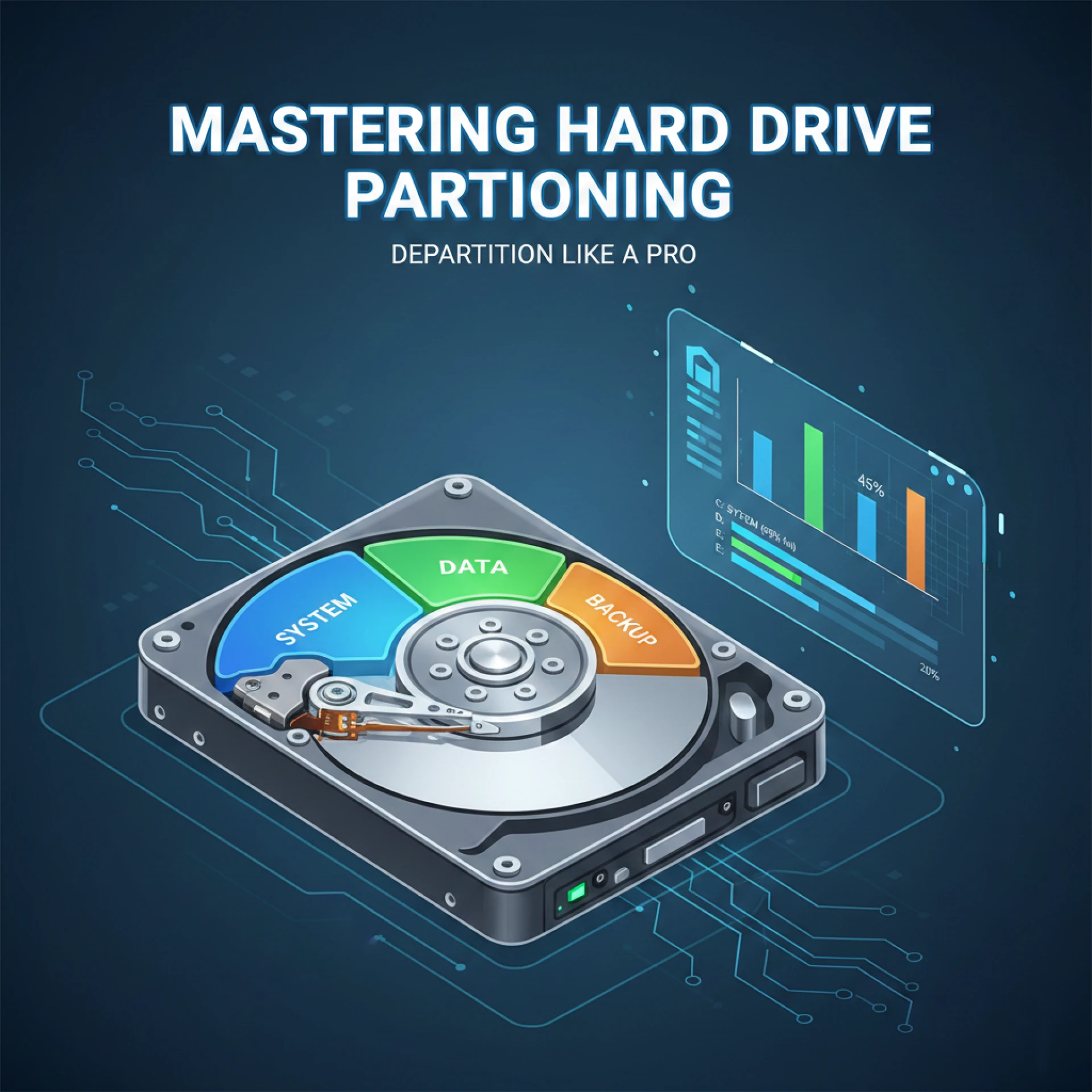

Managing your computer’s storage efficiently is crucial in today’s digital world. Over time, hard drives can become cluttered, and multiple partitions can make storage management confusing. Learning how to departition hard drive safely allows you to reclaim unused space, simplify your storage setup, and optimize overall system performance. In this guide, we’ll cover everything from understanding partitions to safely merging or deleting them so you can handle your storage like a pro.
What is a Hard Drive Partition?
Before you learn how to departition hard drive, it’s important to understand what partitions are and why they exist.
A hard drive partition is a section of your disk that functions like a separate drive. For example, Windows shows partitions as C:, D:, E:, and each can store data independently. Partitions are commonly used to:
- Organize files (system vs. personal data)
- Install multiple operating systems
- Simplify backups
- Protect important files in case of disk failure
Why You Might Need to Departition Your Hard Drive
While partitions are useful, there are several scenarios where removing or merging them is beneficial:
1. Free Up Unused Space
One partition may be full while others remain empty. Departition hard drive lets you merge these partitions, making storage more efficient.
2. Simplify Disk Management
Too many partitions can complicate file organization. Removing unnecessary partitions keeps your drive neat and easy to manage.
3. Prepare for a New Operating System
If you plan to reinstall or switch operating systems, cleaning up old partitions ensures a fresh start and avoids conflicts.
4. Fix Partition Errors
Corrupted or inaccessible partitions can disrupt your workflow. Departitioning lets you remove problematic areas and rebuild them safely.
Step-by-Step Guide to Departition Hard Drive
Step 1: Backup Your Important Data
Before you start, always back up your files. Even a small mistake during the process can lead to permanent data loss. Options include:
- External hard drives
- Cloud storage (Google Drive, Dropbox, OneDrive)
- Disk imaging software
Step 2: Choose the Right Partition Tool
While Windows and macOS have built-in disk management utilities, third-party tools often offer more flexibility:
- AOMEI Partition Assistant
- EaseUS Partition Master
- MiniTool Partition Wizard
These tools allow safe merging, resizing, or deletion of partitions.
Step 3: Delete or Merge Partitions
Depending on your goals, you can either delete or merge partitions:
Deleting a Partition
- Open your partition manager tool.
- Select the partition to remove.
- Click Delete Partition and confirm.
Merging Partitions
- Select the partitions you want to merge.
- Click Merge Partitions.
- Follow the instructions to combine them safely.
Step 4: Reallocate Unused Space
After merging or deleting, you may have unallocated space. You can:
- Extend an existing partition to include this space
- Create a new partition for extra storage
This step ensures no storage is wasted.
Step 5: Verify and Optimize
Once you finish departition hard drive:
- Check that all files are intact
- Confirm partition sizes are correct
- Run a disk check or optimization tool to ensure your hard drive is healthy
Tips for a Smooth Departition Process
- Always backup data before making changes
- Avoid interruptions during the process
- Ensure stable power supply, especially on laptops
- Understand your file system (NTFS, FAT32, exFAT)
- Take your time and double-check each step
Common Mistakes to Avoid
- Skipping backups
- Deleting the wrong partition
- Interrupting the process midway
- Ignoring system partitions, which may make the OS unbootable
FAQ: Departition Hard Drive
1. What does it mean to departition a hard drive?
It means removing or merging existing partitions to reorganize storage, free up space, or fix errors.
2. Is it safe to departition a hard drive?
Yes, if done carefully using reliable tools and after backing up your data.
3. Will I lose data during the process?
Data can be lost if you delete a partition without backup. Always save important files first.
4. Can I departition a system drive?
Yes, but extra caution is required. Modifying system partitions incorrectly can prevent your computer from booting.
5. How long does it take?
It depends on the size and type of operation. Small partitions take minutes, larger ones may take hours.
Conclusion
Learning how to departition hard drive is essential for anyone looking to optimize storage, improve system performance, or manage their computer efficiently. By following the steps outlined abovebacking up data, using trusted partition tools, and carefully deleting or merging partitions you can co nfidently reorganize your hard drive without risking your files.
Proper partition management ensures your system runs smoothly, storage is fully utilized, and your data remains secure. With patience and the right tools, you can departition your hard drive like a pro.










Sign in to leave a comment.