
The Tenda Wireless Easy Setup Router is designed to set up more quickly for home users. It complies with IEE802.11n, and delivers wireless speeds of up to 300 Mbps, making it perfect for everyday web activities such as email, chat, social media, streaming videos, gaming, etc. The Tenda Router can also work as a client router to connect the ISP network wirelessly or uplink the AP to share the internet to every corner, eliminating the dead point. If you want your Tenda wifi setup quickly at home, you can refer to the steps given below in this article.
[caption class="snax-figure" align="aligncenter" width="1140"]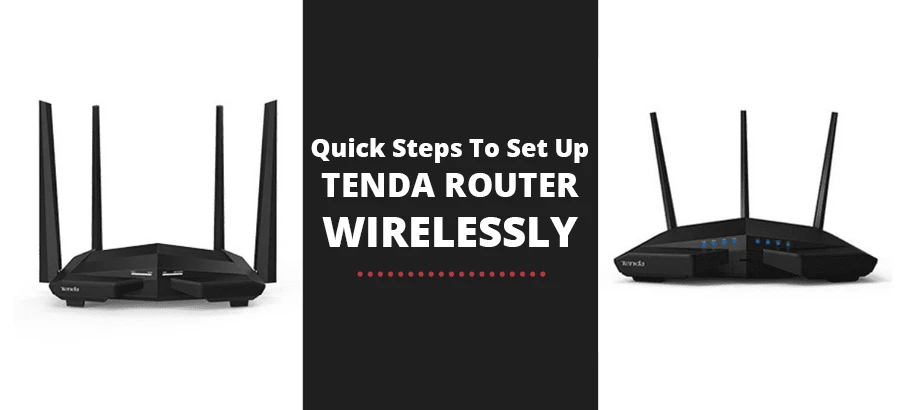 http://tenda%20wifi%20setup[/caption]
How To Setup Your Tenda Router Wirelessly?
You can follow the steps given below in this section to set up your Tenda router wirelessly. Make sure you read the instructions carefully.
First is the physical connection. Take an ethernet cable to connect your modem with the blue WAN port of the router.
Now, take another ethernet cable to connect your PC with one of the yellow LAN ports of the router. You need to also check the LED lights on the router after the connection. Ensure the SYS light is blinking, the WLAN light is on or flashing, and the WAN light is bilking.
The next step is to log in to the router. Open your web browser and type the IP address in the address bar—press enter. Next, you will see the router\'s login page, where you need to enter the login details such as the username and the Tenda router default password. Click on login. You will see the control panel of your router. You need to click Next on this page and then choose your internet type. Fill in your information and then Apply. If you do not know which one you must choose, please click Auto Detect or reach your ISP provider.
You need to click WLAN settings, and then click the BASIC settings to set the name of your wireless network, then change the SSID to tenda123 and choose channel 6. Next, you need to click Apply to save the settings of your Tenda wifi setup.
Click WLAN settings, and then click Security settings to set the password. Then choose WPA Personal as security mode and AES as WPA algorithms. In the passphrase blank, you need to type the password, which must be at least eight characters, and then click Apply to save.
The next thing you can do is to connect your computers to the internet using the Wi-Fi network connection. Please find the name of your wireless network and then connect to it. You have to enter the password. After that, you can finally enjoy the internet services. This is how you can follow the procedure for Tenda wifi setup.
Some people also ask how to find wifi password on windows 10. You can do that from the start menu, click on settings and then click on the network and internet. Now, you have to scroll down in the status section and click on the Network and Sharing Center. Click on the Wi-Fi name in the view your active networks section. When the Wi-Fi status window opens, you need to click on Wireless properties and move to the Security tab. Then mark the checkbox that is given next to show characters to view the Wi-Fi password.












Sign in to leave a comment.